Recreating a project from a coding tutorial sounds simple: watch, type, done. In practice, most people stall somewhere around the middle. Something breaks, the instructor's screen no longer matches yours, you rewind three times, and the project ends up abandoned in a folder called test2.
The problem is rarely skill. It is process. Tutorials are recorded by someone who already knows the answer, with everything installed, in a project that already works. You are starting from zero, on a different machine, months or years later. This guide gives you a method that closes that gap: check the tutorial before you start, match the instructor's environment, work in small checkpoints that always run, and spend your effort on the parts that actually teach you something.
Quick answer: check the tutorial's age and comments first, then install the same language and framework versions the instructor used. Build the folder structure before any logic. Work one chapter at a time, run the project at the end of each chapter, and commit it. Copy or extract boilerplate, and type the core logic yourself. When the finished project runs, change one thing the tutorial did not cover.
Why tutorial projects fall apart halfway
Before the method, it helps to know what usually goes wrong. Almost every abandoned tutorial project fails for one of these reasons:
- Version drift. The video used React 18, Next.js 13 or Django 4. You installed the latest version, and an API the instructor uses has changed or disappeared.
- Missing setup. The instructor created a
.envfile, a database or an account before recording. It never appears on screen, so your project is missing a piece from the start. - Off-camera changes. The instructor fixed a typo or added an import between cuts. Your code matches the screen exactly and still fails.
- One long session. You follow for two hours without running anything. When it finally breaks, the bug could be anywhere in 400 lines.
- Transcription fatigue. By minute 40 you are tired of pausing and retyping, you stop paying attention to why the code works, and motivation drops.
Each step below is designed to prevent one of these.
Step 1: Check the tutorial is worth recreating
Spend five minutes on this before writing any code. It saves hours.
- Check the upload date. It is shown under the video title. A two-year-old JavaScript tutorial may use versions that no longer install cleanly. That is fixable, but you should know before you start.
- Skim the end of the video. Make sure the final result is something you actually want to build, and that the instructor gets it working on screen.
- Read the comments. Search them for "error", "doesn't work" or "deprecated". If dozens of people hit the same problem at minute 23, you will too, and someone has usually posted the fix.
- Look for the source code. If the creator published a repo, keep it open as a reference, even if you plan to build everything yourself. See how to get code from a YouTube tutorial for every place to look.
- Check the chapters. YouTube chapters in the progress bar are natural checkpoints. A tutorial with clear chapters is much easier to recreate than one long unbroken recording.
If the tutorial is very old, has many unresolved complaints in the comments, or never shows the finished result working, pick another one. There is no prize for finishing a broken tutorial.
Step 2: Match the instructor's environment
Most "it works for them but not for me" problems are version mismatches. Before writing code, note the versions the instructor uses and install the same ones.
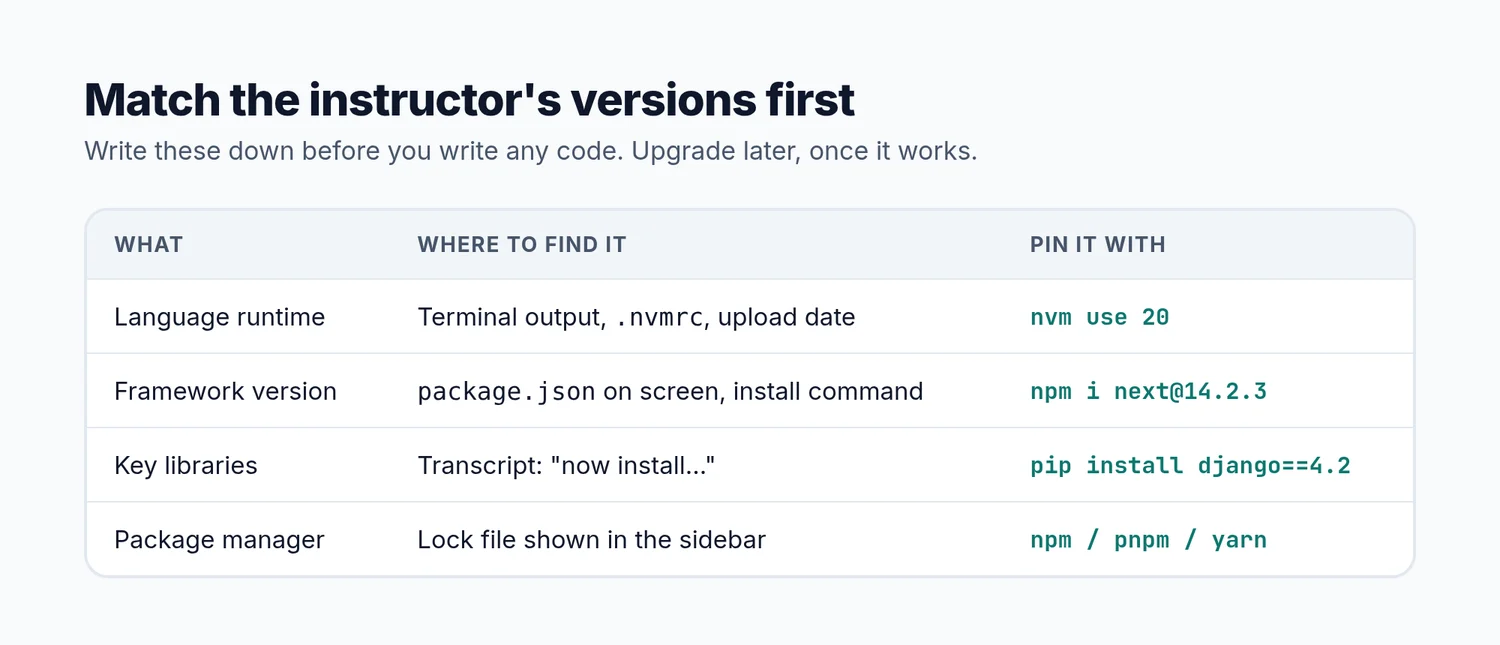 Write these down before you write any code.
Where to find them:
- The language version. Watch for terminal output like
node -vorpython --version, a.nvmrcfile in the sidebar, or the version printed when the dev server starts. If it is never shown, use the version that was current when the video was published. - The framework version. Pause on the
package.json,requirements.txtorcomposer.jsonif it appears, or on the install command. - Key libraries. The transcript is the best source here. Instructors say package names out loud: "now let's install zod".
Then pin them. For Node, use nvm to switch versions per project. For Python, create a virtual environment with the right interpreter. For packages, install the exact versions shown on screen instead of the latest:
nvm install 20 && nvm use 20
npm install next@14.2.3 react@18.3.1 react-dom@18.3.1

python3.11 -m venv .venv && source .venv/bin/activate
pip install django==4.2
You can upgrade later, once the project works. Upgrading while you are still learning the project doubles the number of things that can go wrong, and you will not be able to tell whether a bug is yours or the upgrade's. The full setup checklist, including environment variables and databases, is in how to set up a project from a tutorial.
Step 3: Build the folder structure first
Before writing any logic, pause the video wherever the file explorer is visible and recreate the folder and file structure. Empty files are fine.
This does three things:
- It gives you a map. When the instructor says "now open the auth service", you know where it lives instead of scrubbing back to find it.
- It reveals missing files early. If the instructor's sidebar shows a
lib/db.tsthat is never opened on camera, you know to look for it now, not when an import fails an hour later. - It makes the project feel real. A complete tree of empty files is a surprisingly good motivator. Every file you fill in is visible progress.
Frameworks often generate the structure for you (npm create vite@latest, django-admin startproject, composer create-project laravel/laravel). Use the same generator and the same options the instructor used, or your starting files will differ from theirs.
Step 4: Work in checkpoints, not one long session
This is the most important step. Split the tutorial into chunks that each end in something you can run: "server starts", "homepage renders", "data loads from the API", "login works". YouTube chapters usually map to these naturally.
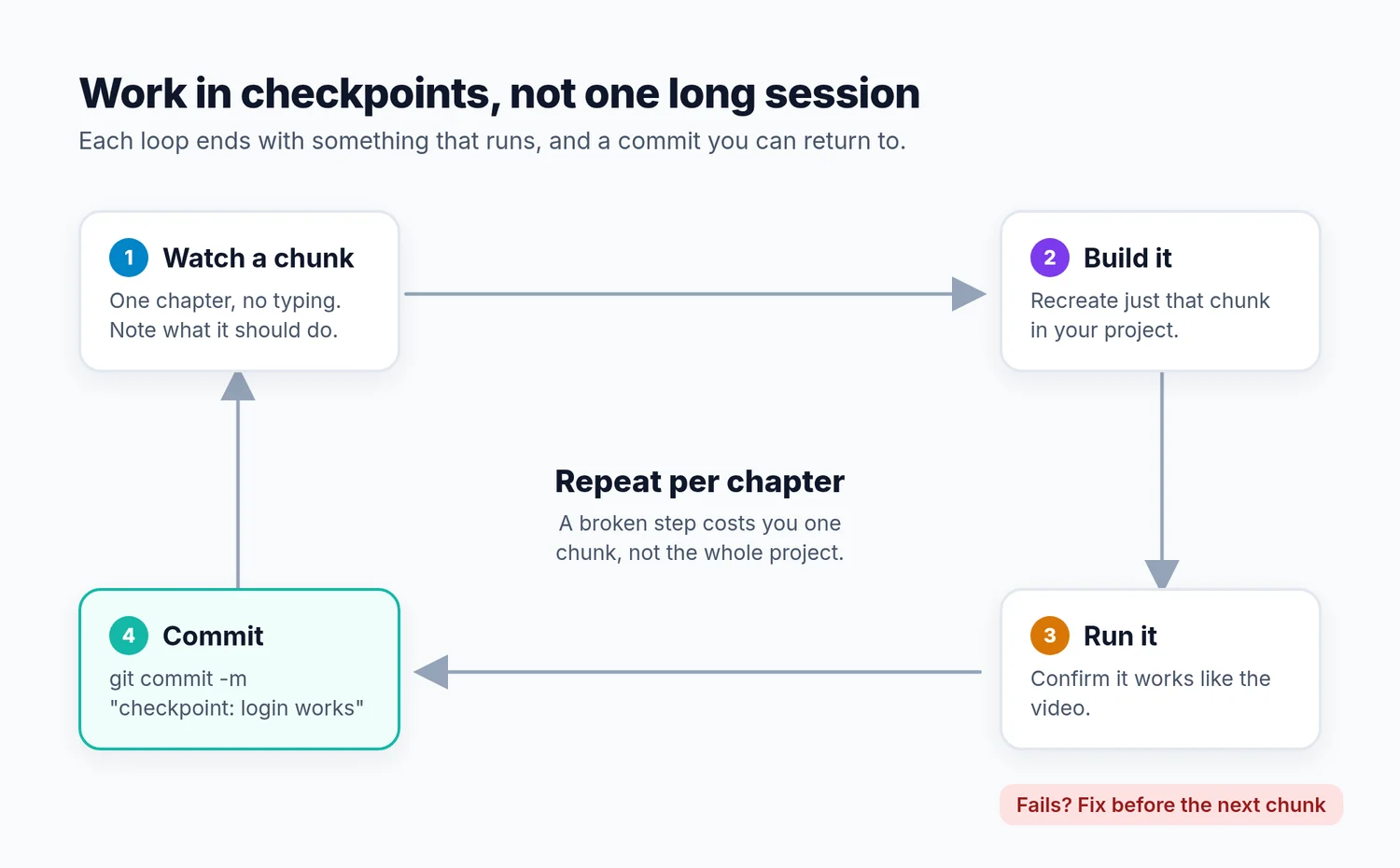 A broken step costs you one chunk, not the whole project.
For each chunk:
- Watch it first, without typing. Understand what the instructor is building and why. Note what should work at the end.
- Build it. Recreate that chunk in your project.
- Run it. Confirm it behaves like the video. Do not move on until it does.
- Commit it. Save a checkpoint with git:
git add .
git commit -m "checkpoint: login works"
- Write one line of notes about what you learned in that chunk.
When something breaks later, you can compare against the last working commit with git diff instead of starting over. And because every chunk ends with a running project, a bug can only be in the code you wrote since the last checkpoint, which is usually a few dozen lines, not a few hundred.
Step 5: Type the important parts, skip the boilerplate
Not every line deserves your attention. Retyping forty lines of Tailwind classes or a generated config file teaches you very little. The interesting parts, the data model, the API route, the state logic, are where the learning happens.
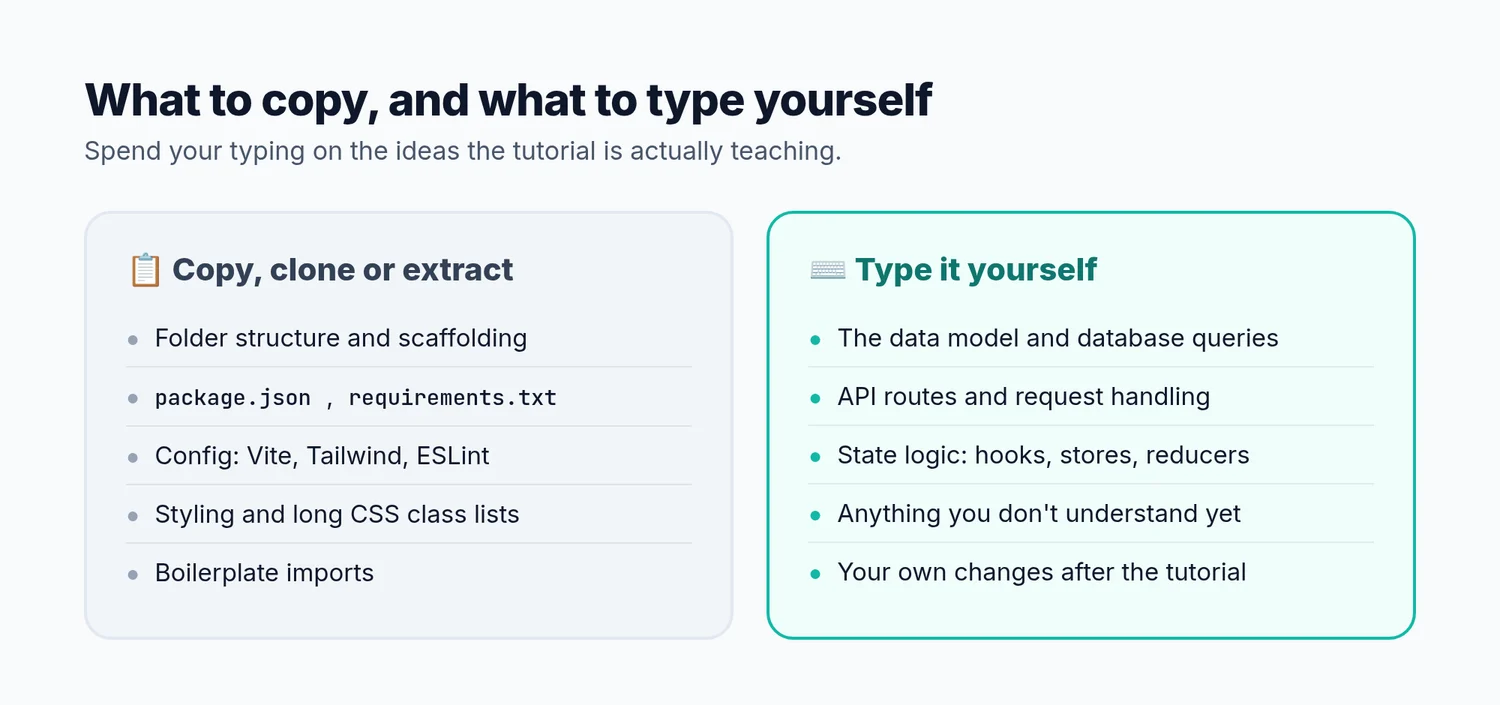 Spend your typing on the ideas the tutorial is actually teaching.
A practical rule: if the line would be the same in any project with this stack, copy it. If it is specific to what this tutorial is teaching, type it, and make sure you can explain it. There is more on this approach in how to learn from coding tutorials without retyping code.
Using an extracted project as your reference
If you want the boilerplate handled so you can focus on the logic, YouExtractor can extract the project from a public YouTube tutorial with captions: the file tree, dependency files, config and a setup guide. You can then recreate the core logic yourself while the extracted files sit next to you as a reference, or start from the extracted project and rewrite the important parts from memory.
Each extraction also includes a Guided Learning Roadmap: the tutorial broken into a checklist of steps, which works well as your list of checkpoints. Your progress is saved, so you can recreate a long course over several days without losing your place.
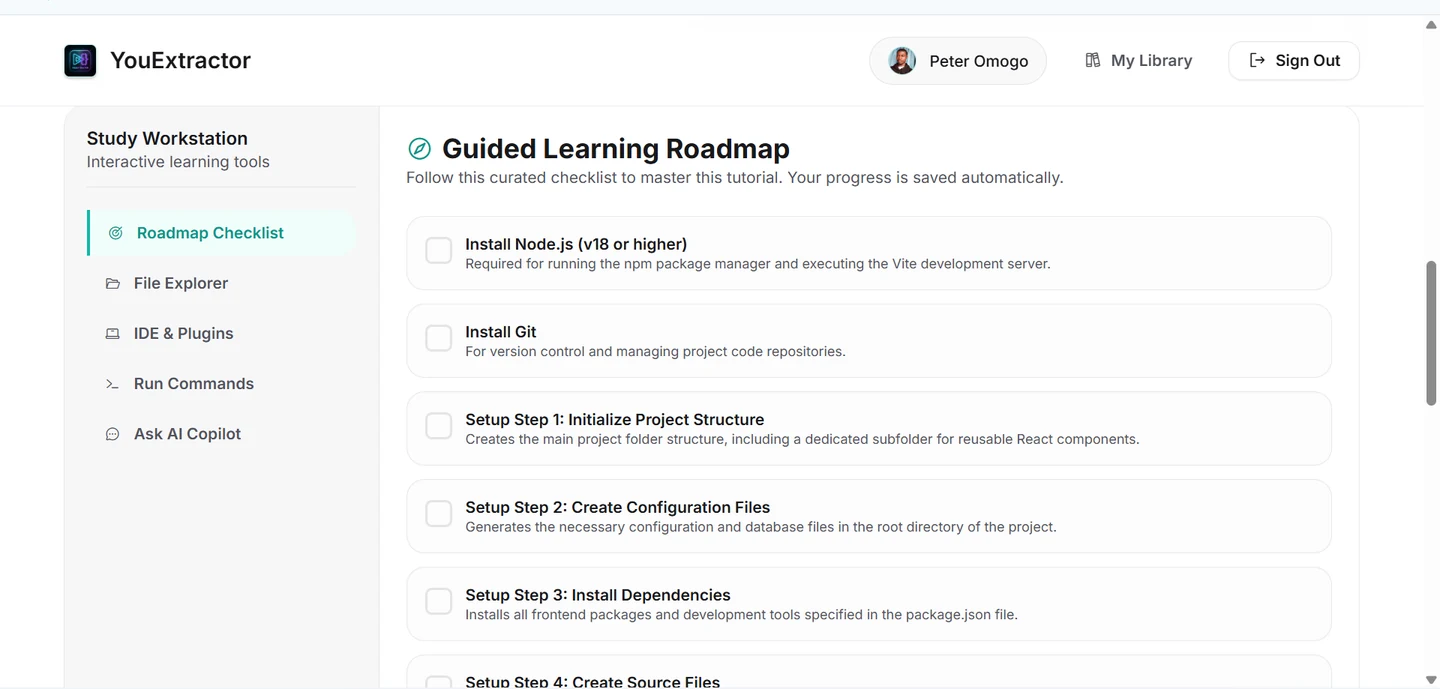 The roadmap doubles as a checkpoint list for recreating the project.
If you get stuck on a step, the AI Copilot in each workspace knows the exact tutorial you are recreating, so you can ask "why does this component need a key prop?" or "what did the instructor install before this step?" and get an answer in context. Every account gets one free extraction to try it.
Step 6: When your screen stops matching theirs
It will happen. A package renamed a function, a UI changed, or the instructor edited something off-camera. When it does, work through this list in order:
- Read the full error message. Find the first error, not the last, and the file and line number in your code.
- Compare that exact moment. Go back to the timestamp where the failing code was written and compare character by character. Look for typos, missing imports and named vs default exports.
- Skip ahead a few minutes. If your code matches the screen and still fails, the instructor may fix it later in the video, or the fix may be visible in a later frame.
- Check the comments for that timestamp. Other viewers have probably hit the same problem.
- Check the docs for the version you installed. Migration guides usually explain renamed APIs and changed defaults.
- Compare with the source repo, if one exists, at the commit closest to the upload date.
| Symptom | Most likely cause | First thing to try |
|---|---|---|
| Install fails or prints version errors | Different runtime version | Switch to the instructor's Node or Python version |
| "Cannot find module" | Package installed off-camera | Search the transcript for the package name |
| Code matches the screen but fails | Fix made between cuts | Skip ahead, check later frames and comments |
| Function or import "does not exist" | Library API changed | Install the version from the video, or check the migration guide |
| Database or "connection refused" errors | Setup done before recording | Create the database and .env values, then run migrations |
There is a full walkthrough of these errors in how to fix errors in a coding tutorial.
Step 7: Change one thing after you finish
A recreated project you never touch again is a souvenir. To turn it into learning, make at least one change the tutorial did not cover:
- Add a feature: search, pagination, dark mode, a delete button.
- Swap a piece: SQLite to Postgres, REST calls to a server action, local state to a store.
- Write a test for the core logic.
- Deploy it somewhere public.
That change is where you find out what you actually understood. If you can make it without the video, you learned the project. If you cannot, you now know exactly which part to rewatch.
Step 8: Save it properly
Push the finished project to GitHub with a README that includes:
- The original video link and the instructor's name
- How to run it, with the exact versions you used
- What you changed after the tutorial
Your future self will thank you, and a tutorial project with documented changes is a reasonable early portfolio piece. The full process, including .gitignore and keeping secrets out of the repo, is in how to turn a YouTube tutorial into a GitHub project.
A realistic timeline
How long recreating a tutorial takes depends on the tutorial, but a useful rule of thumb is that following along carefully takes two to three times the video's length. A one-hour tutorial is a two- or three-hour project once you include pausing, running and fixing. Plan for that, split it across sessions at chapter boundaries, and you are far less likely to give up halfway.
Frequently asked questions
Should I type every line from the tutorial?
No. Type the code that teaches the concept: the logic, the data model, the parts you do not understand yet. Copy, clone or extract the boilerplate, config and styling. Typing everything mostly trains your patience.
What if the tutorial uses an old version of a framework?
Install the same version the instructor used and finish the project first. Once it works, upgrading it to the current version is a great learning exercise in itself, and you will understand both versions better.
How do I know which version the instructor used?
Look for package.json or requirements.txt on screen, version output in the terminal, and package names in the transcript. If none of those appear, use the versions that were current on the video's upload date.
Is it okay to start from the creator's repo instead of an empty folder?
Yes, especially for long courses. Check out the commit from the upload date, then delete or rewrite the core logic yourself as you watch. You get a working structure and still learn the important parts.
What should I do if I get stuck for more than 30 minutes?
Commit what you have, write down the exact error, and compare with the source repo or the next part of the video. If that does not help, ask with the error, the code around it, your versions and the tutorial timestamp. Being stuck on one step should not end the whole project.