You typed exactly what the instructor typed. Their app works. Yours shows a wall of red text. This is the most frustrating moment in learning to code, and the most common reason people abandon a tutorial halfway through.
The good news: tutorial errors are rarely random. Almost all of them come from a short list of causes, and there is a reliable order for working out which one you have. This guide walks through that order, explains the eight errors that break tutorial projects most often, and shows you how to ask for help when you are truly stuck.
Quick answer: read the first error and find the line in your code it points to. Compare that part with the video at the same timestamp. Check the video comments for the error. Then search the generic part of the message. Most tutorial errors turn out to be a version mismatch, a missing dependency, or a missing
.envvalue.
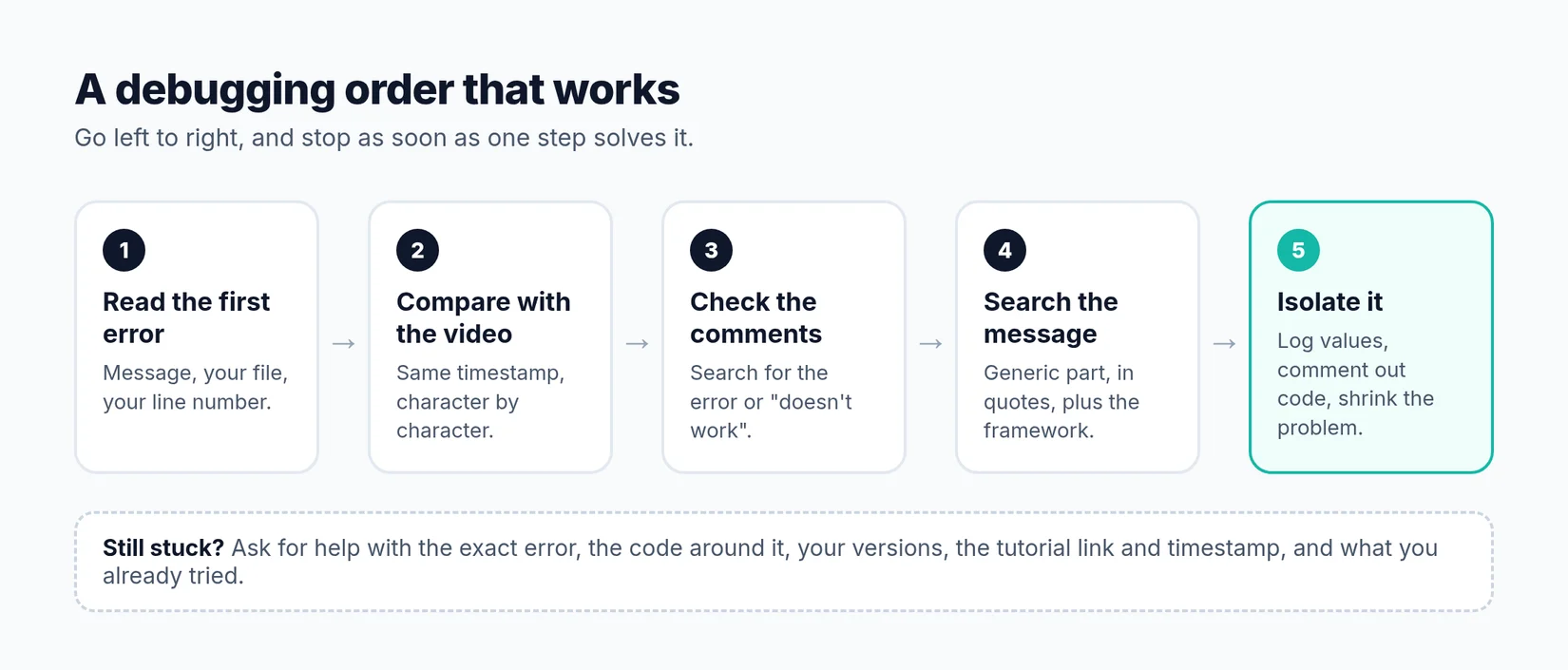 Work left to right, and stop as soon as one step solves it.
Step 1: Read the error properly
It sounds obvious, but most people glance at the red text and go straight to Google. Error messages are long because they are trying to help. Slow down and look for three things.
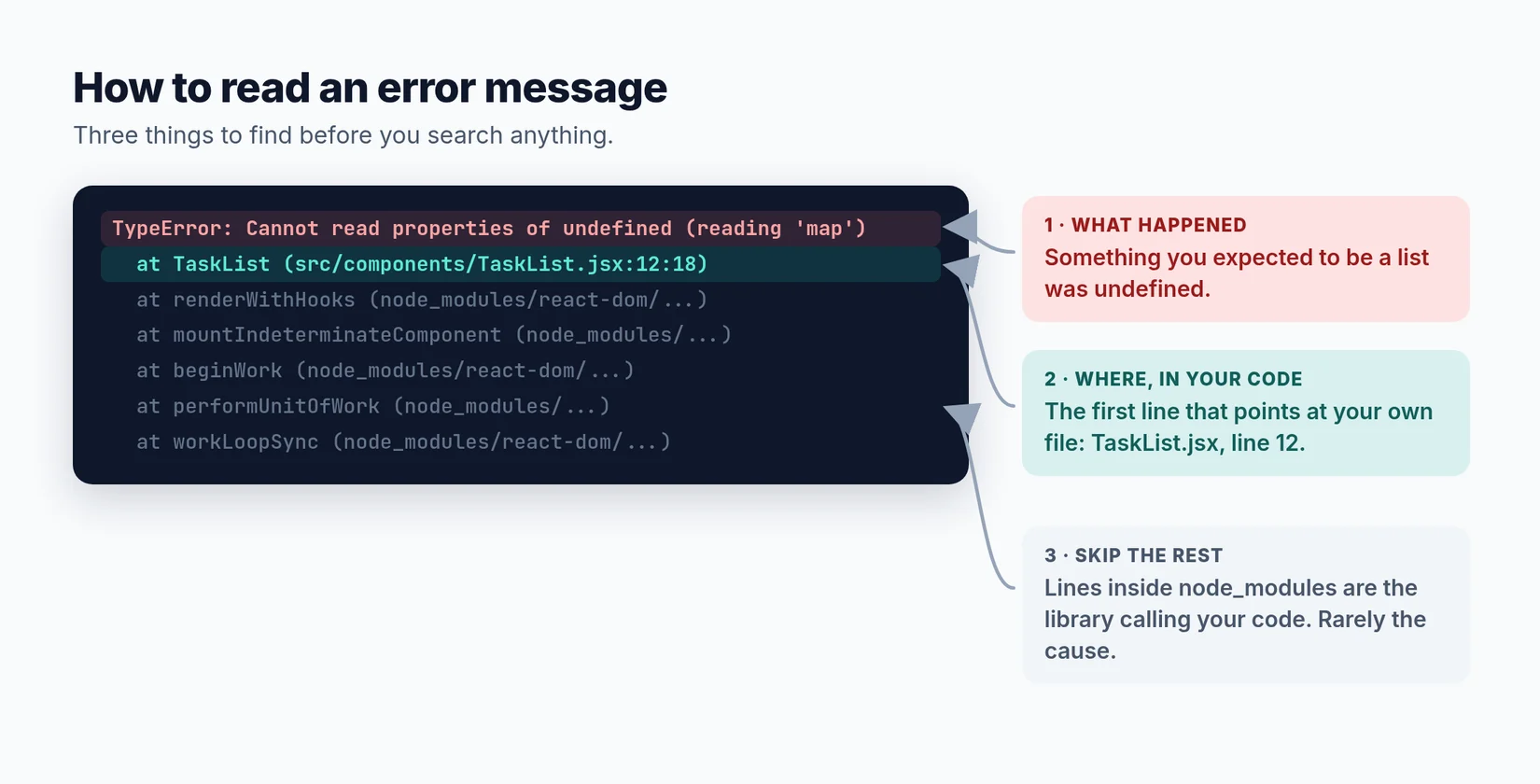 Three things to find in every error before you search anything.
1. What happened. The first line names the problem. TypeError: Cannot read properties of undefined (reading 'map') tells you exactly what went wrong: your code called .map() on something that was undefined, usually because data had not loaded yet or a prop was not passed.
2. Where it happened in your code. A stack trace lists every function that was running when the error occurred. Scan down for the first line that points at a file you wrote, like src/components/TaskList.jsx:12:18. That is file, line 12, column 18. Open it and look there first.
3. What to ignore. Lines inside node_modules, site-packages or vendor are library code calling your code. The bug is almost never there.
Find the first error, not the last
When a command prints a lot of output, the first error is usually the cause and everything after it is a consequence. In Python, the cause is at the bottom of the traceback. In most JavaScript tools, it is near the top. If a build prints twenty errors, fix the first one and run it again. The rest often disappear.
Here are a few real error messages and what they actually mean:
Error: Cannot find module 'express'
→ The package is not installed in this project. Run npm install.

ModuleNotFoundError: No module named 'flask'
→ Not installed, or installed outside the active virtual environment.

Error: connect ECONNREFUSED 127.0.0.1:5432
→ Nothing is listening on the database port. Postgres is not running.

Error: listen EADDRINUSE: address already in use :::3000
→ Another app is already running on port 3000.
Step 2: Compare with the tutorial at that exact point
Go back to the timestamp where the instructor wrote the code that is failing, and compare it with yours line by line. Look especially for:
- Typos in names.
userIdvsuserID,TaskListvsTasklist. JavaScript and Python are case-sensitive, and so are file names on Linux and macOS. - A missing
importat the top of the file, often scrolled off-screen in the video. - Default vs named exports.
export default TaskListmust be imported asimport TaskList from, whileexport function TaskListneedsimport { TaskList } from. - The wrong file. The instructor had two files open, and you edited the other one.
- Code added off-camera. Instructors often edit between cuts. If a later frame shows a line you never saw being typed, that line is your fix.
If the instructor published a repo, compare your file with theirs side by side. Most editors have a compare view: in VS Code, select both files in the Explorer, right-click and choose Compare Selected. If there is no repo, how to get code from a YouTube tutorial covers other ways to get a reference copy.
Step 3: Check the comments for that timestamp
If an error happens to you, it has probably happened to many other viewers. Before you spend an hour on it, search the video's comments:
- Search for a few words of the error message.
- Search for "doesn't work", "error" or "fixed".
- Look for the timestamp where you got stuck.
Creators often pin corrections ("At 23:10 I forgot to add the import"), and other viewers frequently post fixes for problems caused by newer library versions. Sorting comments by Newest is useful for older tutorials, because recent comments describe problems with today's versions.
Step 4: Search the exact error message
Copy the core of the message, strip out everything specific to your machine (file paths, your variable names, line numbers), and search it in quotes along with the framework name:
"Hydration failed because the server rendered HTML didn't match the client" nextjs
"Cannot read properties of undefined (reading 'map')" react
The most reliable answers usually come from three places: the library's official docs (especially migration guides), GitHub issues on the library's repository, and Stack Overflow answers that mention the version you are using. Check the date on every answer. A fix from 2019 may be the cause of your problem, not the solution.
The 8 most common tutorial errors
After you have read the message and checked the obvious, the cause is usually one of these eight.
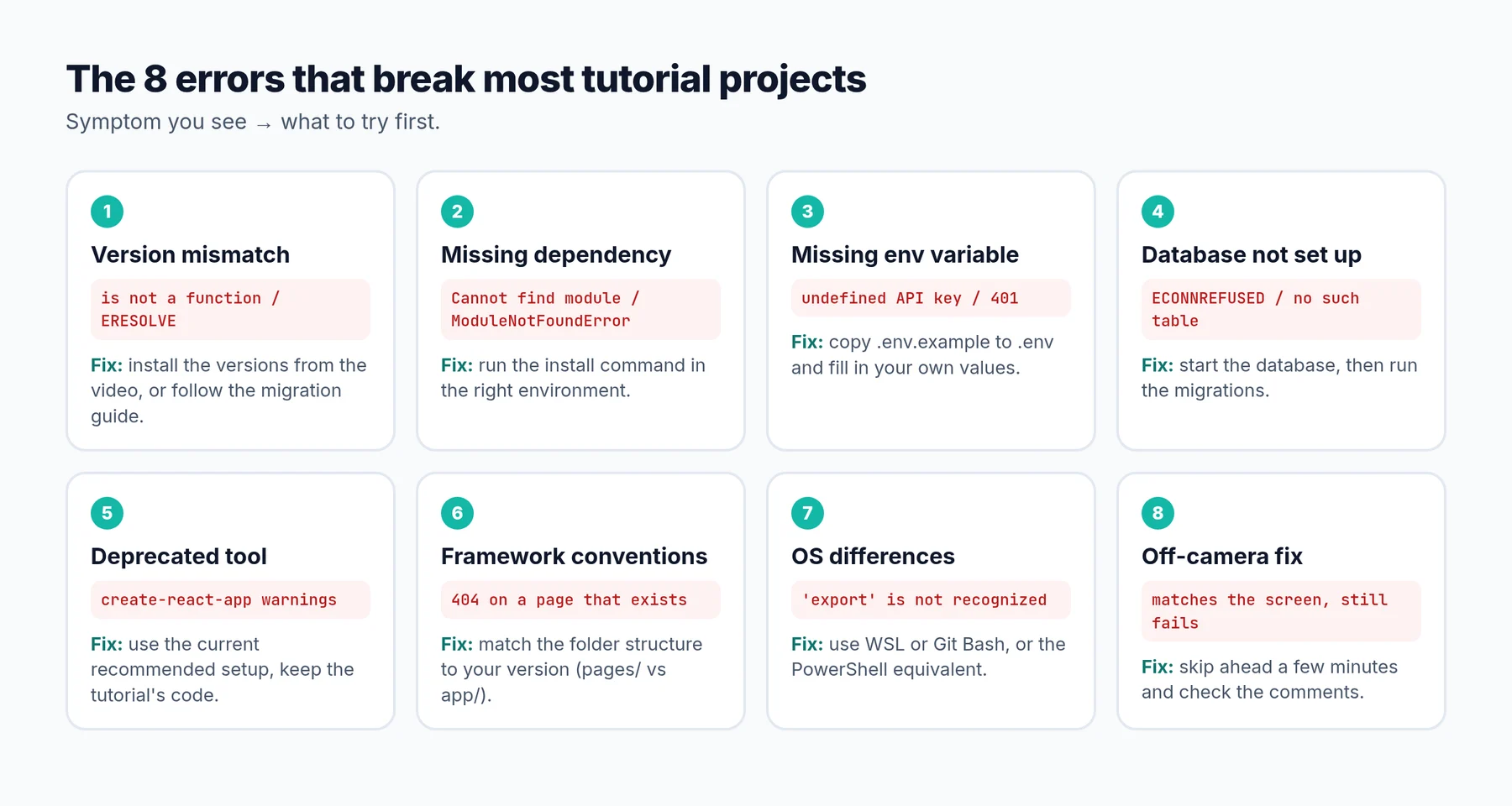 The eight usual suspects, with the symptom and the first fix to try.
1. Version mismatch
The tutorial used version 4 of a library, you installed version 6, and an API changed. This is the single most common cause of tutorial errors. Symptoms include "is not a function", missing exports, deprecation warnings, or npm ERR! ERESOLVE dependency conflicts.
Fix: check the video's upload date and the versions visible on screen (often in package.json or the install command), then install those exact versions:
npm install react-router-dom@6.22.0
pip install "django==4.2.*"
Or keep the new version and follow the library's migration guide. Either works. What does not work is mixing old tutorial code with new library versions and hoping.
2. Missing dependencies
"Cannot find module", "ModuleNotFoundError", "Class not found". Either the install command was never run, it ran in the wrong folder, or the instructor installed a package off-camera.
Fix: run the install command from the project's root folder. For Python, activate the virtual environment first, because installing outside it is a classic trap. If a package is still missing, search the transcript for "install" to find the one the instructor mentioned but never showed.
3. Missing environment variables
The app expects an API key, a database URL or a secret from a .env file that never appears in the video, because it contains the instructor's private keys. Symptoms are undefined values, 401 Unauthorized responses, or errors about a missing configuration value.
Fix: look for a .env.example file and copy it to .env. If there is none, search the code for process.env. (Node), os.environ or os.getenv (Python), or env( (Laravel) to see every value it needs. Create your own free or test accounts for any API keys. Never use keys shown in a video.
4. Database not set up
"Connection refused", "relation does not exist", "no such table". The database is not running, the connection string is wrong, or you skipped the migration step that creates the tables.
Fix: start the database service (or its Docker container), check the connection details in .env, then run the migrations. The exact commands for Node, Python and PHP projects are in how to set up a project from a tutorial.
5. Deprecated tools
Some tools in older tutorials are no longer maintained. Create React App, for example, was officially deprecated in February 2025, and the React docs now recommend starting new projects with a framework or a build tool like Vite. If the tutorial's setup command fails or prints deprecation warnings, set the project up the current recommended way, then carry on with the tutorial's components and logic. The React code itself usually still works.
6. Framework conventions changed
Frameworks change how projects are structured. Next.js is the classic example: older tutorials use the pages/ folder, while current versions default to the App Router in the app/ folder, with different file names and data-fetching patterns. A file in the wrong place often fails silently, and you just get a 404 for a page you know you created.
Fix: check which version the tutorial used and either match it, or learn the new convention before continuing. Our Next.js guide covers the most common differences.
7. Operating system differences
Shell commands are not the same everywhere. rm -rf, export API_KEY=... and source venv/bin/activate work on macOS and Linux but not in Windows Command Prompt, where you will see errors like 'export' is not recognized as an internal or external command.
Fix: on Windows, use WSL (Windows Subsystem for Linux) or Git Bash to run the commands exactly as shown, or look up the PowerShell equivalent. For example, Python virtual environments are activated with .venv\Scripts\activate on Windows.
8. The instructor fixed something off-camera
Sometimes the instructor's code works because they fixed a bug between cuts. If your code matches the screen exactly and still fails, skip ahead a few minutes. The fix is often visible in a later frame, mentioned in passing ("I also updated the config file"), or pointed out in the comments.
Step 5: Isolate the problem
If none of the above solves it, make the problem smaller until it is obvious.
- Log the values. Add a
console.log()orprint()just before the failing line to see what the data actually is. Most "undefined" errors are explained in seconds this way. - Comment out code. Disable half of the suspicious code. If the error disappears, the cause is in that half. Repeat.
- Go back to the last working commit. If you committed at each checkpoint,
git diffshows exactly what changed since the project last worked. This is the best argument for committing often while following a tutorial. - Change one thing at a time. If you upgrade packages, switch Node versions and edit config all at once, you will never know which change fixed it, or broke it.
When you can describe the problem in one sentence ("the tasks array is empty when the page first loads"), the fix is usually close.
Step 6: Ask for help the right way
If you are still stuck after an honest attempt, ask. The quality of the answer depends almost entirely on the quality of the question.
| Include | Example |
|---|---|
| The exact error | The full message and the first few lines of the stack trace |
| The code around the failing line | 10–20 lines, as text, not a screenshot |
| Your versions | Node 20.11, React 18.3, Windows 11 |
| The tutorial and timestamp | Link plus "at 23:40, after adding the login route" |
| What you already tried | "Reinstalled node_modules, checked the comments, compared with the repo" |
Questions with that information get answered. "It doesn't work, please help" does not.
Ask an AI tutor that knows the tutorial
General AI chatbots are good at explaining errors, but they do not know which video you are following, so their fixes often assume a different project structure or version. In YouExtractor, every extracted project includes an AI Copilot that has already analysed the video's transcript and code structure.
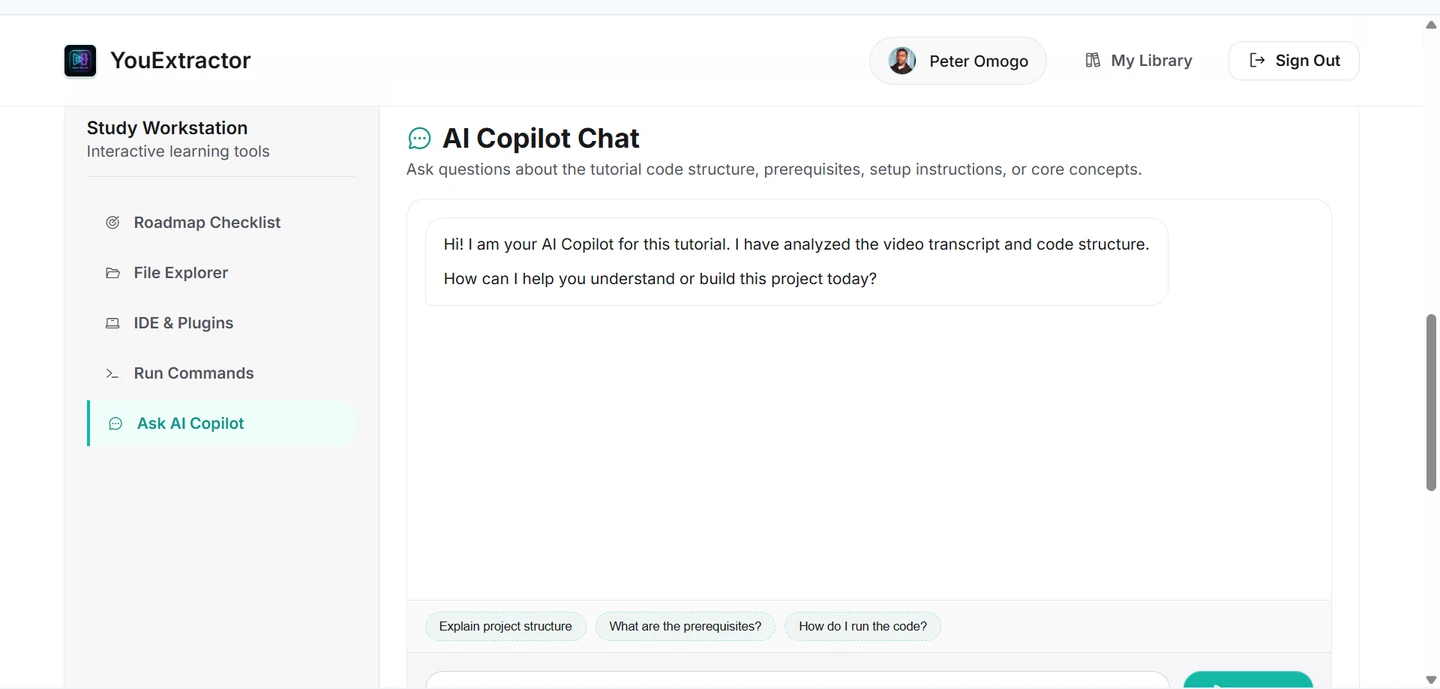 The AI Copilot knows the tutorial you are following, so you can paste an error and ask about it in context.
You can paste an error and ask what is wrong in the context of that exact project, or start with the suggested questions like "What are the prerequisites?" and "How do I run the code?". The extracted project also includes the dependency files, a .env.example when the video uses environment variables, and run commands, which prevents several of the errors above before they happen.
How to prevent most tutorial errors
Most of this guide is about fixing errors after they happen. A few habits prevent most of them in the first place:
- Check the upload date before you start, and note the versions shown on screen.
- Match the instructor's environment first. Upgrade later, once the project works.
- Run the project at every checkpoint, not just at the end.
- Commit after each working step, so you always have a known-good version.
- Keep the transcript open to catch commands and files mentioned but never shown.
The full process is in how to recreate a coding tutorial project.
Frequently asked questions
Why does the code work in the video but not for me?
Usually because something in your environment is different: a newer library version, a missing .env value, a database that is not running, or a different operating system. The code itself is often identical.
Should I downgrade packages to match the tutorial?
While you are learning, yes. Matching the tutorial's versions removes a whole category of errors. Once the project works, you can upgrade one package at a time and fix what changes.
What if the tutorial is too old to fix?
If the core tools have changed completely (deprecated setup tools, major framework rewrites), look for a newer tutorial on the same topic, or use the old one for concepts only and follow the current official docs for setup.
Is it okay to ask AI to fix my error?
Yes, as long as you give it the full error, your code and your versions, and you read the explanation rather than just pasting the fix. An AI that knows the specific tutorial gives much more relevant answers than one guessing at your project.