Getting the code is only half the job. Instructors almost always start recording with everything already installed: the right language version, the database running, the API keys in a .env file. The setup happens off-camera, or in five rushed seconds at the start of the video. You end up with the right files and a project that refuses to start.
This guide is the setup checklist tutorials skip. It works whether you cloned the creator's repo, copied the code by hand or extracted it, and it covers the three stacks most tutorials use: Node.js, Python and PHP/Laravel.
Quick answer: find the manifest file (
package.json,requirements.txtorcomposer.json) to identify the stack, switch to the language version the tutorial used, install dependencies from the lock file, copy.env.exampleto.envand fill it in, start the database and run the migrations, then run the project once before you change anything.
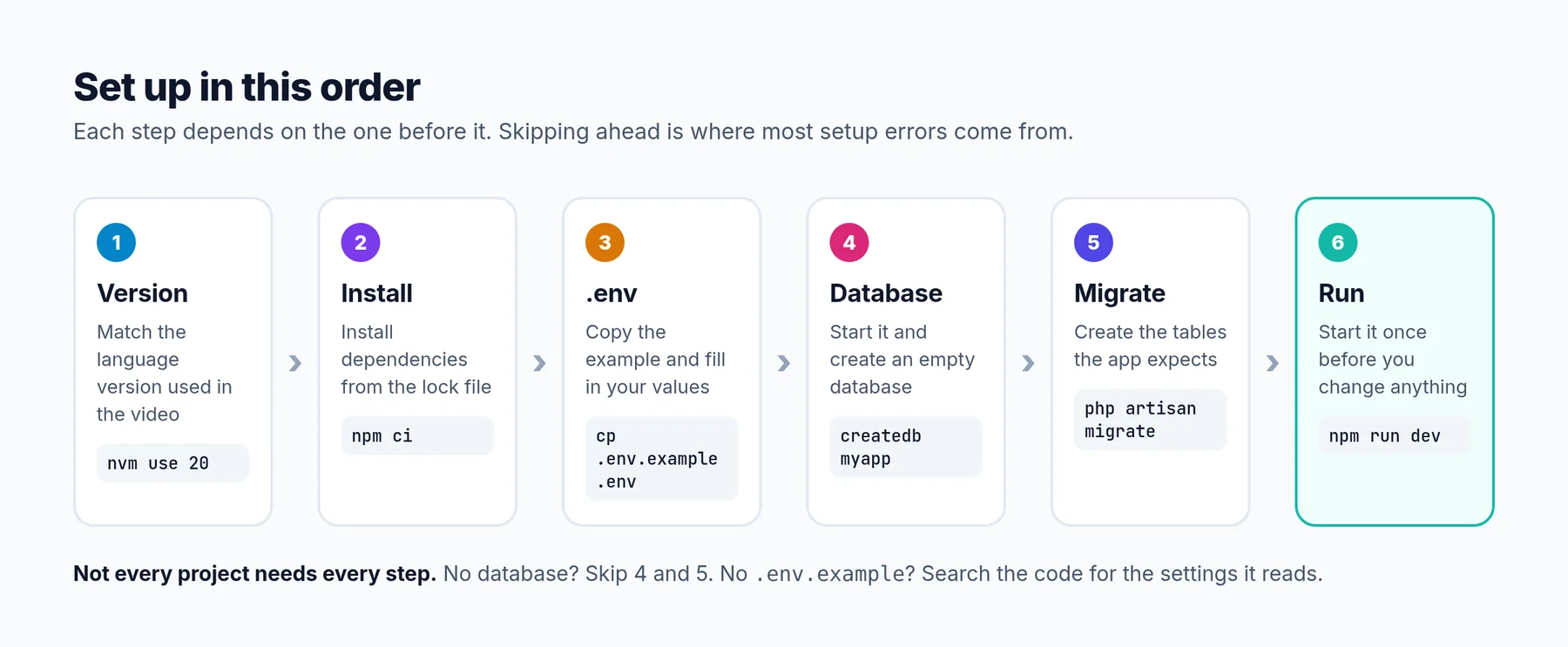 Do the steps in this order. Each one depends on the step before it.
Step 1: Find out what the project is built with
Open the project's root folder. You do not need to read any code yet. The files sitting at the top level tell you the stack, which tool installs its dependencies, and often which language version it expects.
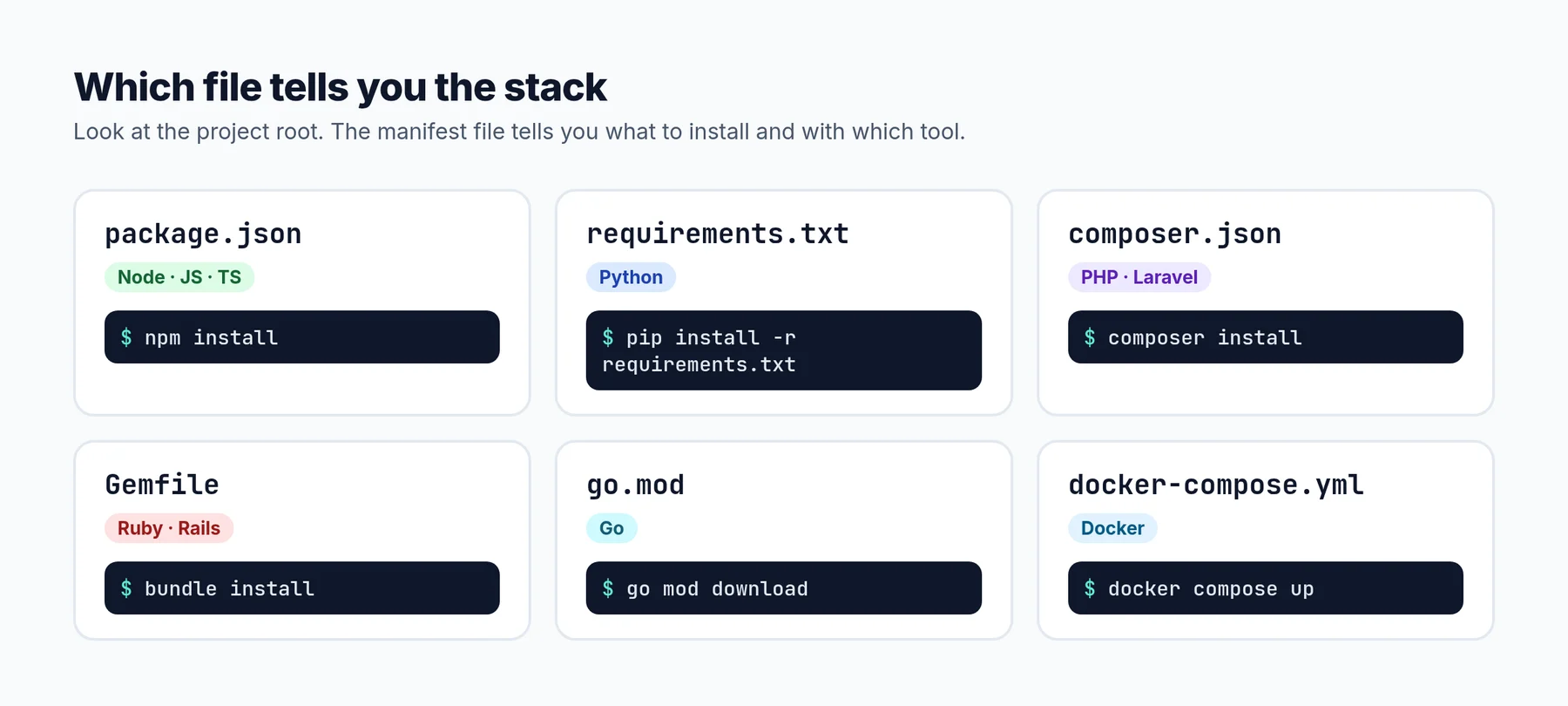 The manifest file at the project root tells you the stack and the install command.
Some projects have more than one. A Laravel app has a composer.json for the PHP side and a package.json for the frontend assets. A full-stack tutorial might have a client/ and a server/ folder, each with its own manifest. In that case, set up each part separately, starting with the backend.
Look for the lock file
Next to the manifest you will often find a lock file. It records the exact version of every package the instructor had installed, including the dependencies of dependencies.
| Lock file | Tool | Install command that respects it |
|---|---|---|
package-lock.json |
npm | npm ci |
pnpm-lock.yaml |
pnpm | pnpm install --frozen-lockfile |
yarn.lock |
Yarn | yarn install --frozen-lockfile (Yarn 1) or yarn install --immutable (Yarn 2+) |
poetry.lock |
Poetry | poetry install |
composer.lock |
Composer | composer install |
If there is a lock file, use the tool that matches it. Installing with a different tool ignores the lock file and pulls the newest versions, which is how a project that worked on the day of recording breaks a year later.
If you copied the code by hand or extracted it from a video, you probably do not have a lock file. That is fine. Install the versions shown on screen where you can, and create your own lock file on the first install so the next setup is repeatable.
Step 2: Use the language version the tutorial used
This is the most common cause of mysterious install errors. A package that installs cleanly on Node 20 can fail on Node 22, and a Python library pinned for 3.10 may not have wheels for 3.13 yet.
Check, in this order:
- Version files in the project:
.nvmrcor.node-versionfor Node,.python-versionfor Python. - The manifest: the
enginesfield inpackage.json,requires-pythoninpyproject.toml, or the"php"entry underrequireincomposer.json. - The video itself: the instructor often runs
node -vor shows the version in the terminal. If not, use the version that was current when the video was published.
Node.js: use nvm
Install nvm (or nvm-windows on Windows), then:
nvm install 20        # install the version the tutorial used
nvm use 20            # switch to it for this terminal
node -v               # confirm
If the project has an .nvmrc file, nvm use with no number picks the right version automatically.
Python: always use a virtual environment
A virtual environment keeps the project's packages separate from everything else on your machine. Without one, two tutorials that need different versions of the same library will break each other.
python3 --version                  # check it matches the tutorial
python3 -m venv .venv              # create the environment once
source .venv/bin/activate          # macOS / Linux
.venv\Scripts\activate             # Windows
You need to activate the environment in every new terminal. Your prompt usually shows (.venv) when it is active. If you need a different Python version entirely, a version manager like pyenv lets you install several side by side.
PHP: check the requirement before you install
Run php -v and compare it with the "php" requirement in composer.json (for example "^8.2" means 8.2 or newer, but not 9). Composer will refuse to install if your PHP version does not match, and the error message tells you which package needs which version.
Step 3: Install the dependencies
With the right version active, install from the manifest:
# Node.js
npm ci                             # with package-lock.json
npm install                        # without a lock file

# Python (with the virtual environment active)
pip install -r requirements.txt
# or, for projects with pyproject.toml and poetry.lock:
poetry install

# PHP / Laravel
composer install
npm install                        # Laravel apps with Vite assets also need this
Read the output. Warnings about deprecated packages are normal and usually safe to ignore for a tutorial project. Errors are not. If the install stops with an error, fix that before moving on, because nothing later will work without a complete install.
Packages installed off-camera. Sometimes the instructor installs a package between cuts, so it never appears in the manifest you copied. You will find out when the app crashes with "Cannot find module" or "ModuleNotFoundError". Search the video's transcript for "install" to catch these early.
Step 4: Create the environment file
Most real projects need settings that should never be committed to git: database passwords, API keys, secret keys, ports. These live in a .env file, which is listed in .gitignore. That is why it is never in the repo and rarely shown on camera.
Look for an example file and copy it:
cp .env.example .env               # macOS / Linux
copy .env.example .env             # Windows Command Prompt
Then open .env and fill in every value. If there is no example file, search the code for where it reads settings. Every name you find needs a value:
| Stack | Search for | Example |
|---|---|---|
| Node.js | process.env. |
process.env.DATABASE_URL |
| Python | os.environ or os.getenv |
os.getenv("OPENAI_API_KEY") |
| Laravel | env( in the config/ folder |
env('DB_PASSWORD') |
For API keys (Stripe, OpenAI, Firebase, Supabase and similar), create your own free or test account and generate your own key. Never use keys you see in a video, even when they are visible on screen. They are usually revoked by the time you watch, and using someone else's key is not okay.
Laravel needs one extra step. A fresh Laravel .env has an empty APP_KEY, and the app will fail with "No application encryption key has been specified" until you generate one:
php artisan key:generate
Step 5: Set up the database
If the project stores data, the database has to exist and be running before the app can start.
- SQLite is just a file. The app or the migration command usually creates it for you. This is the easiest option for tutorials.
- PostgreSQL or MySQL need a running server. You can install it locally, or run it in Docker so it does not clutter your machine:
docker run --name tutorial-db -e POSTGRES_PASSWORD=secret -p 5432:5432 -d postgres:16
- Hosted databases (Supabase, Neon, MongoDB Atlas, Firebase) need a free project and a connection string, which goes in your
.env.
Make sure the database name, user, password and port in .env match what you actually created. A single typo here produces "connection refused" or "authentication failed" errors that look much scarier than they are.
Run the migrations
Migrations create the tables the app expects. Skipping them gives you errors like "relation does not exist" or "no such table" as soon as the app touches the database.
npx prisma migrate dev             # Node.js with Prisma
python manage.py migrate           # Django
php artisan migrate                # Laravel
Many tutorials also load sample data with a seed command (php artisan db:seed, npx prisma db seed). If the instructor's app has data in it from the first minute, they probably seeded it.
Step 6: Run it, and read what it says
Find the start command. For Node, look at the scripts section of package.json. npm run dev is the most common. For Django it is python manage.py runserver, for Flask usually flask run, and for Laravel php artisan serve (plus npm run dev in a second terminal if the app uses Vite).
Run it once before you change anything. If it works, commit it to git straight away. You now have a known-good starting point to return to.
If it fails, and the first time it often does, do not panic at the wall of red text. You only need two lines from it.
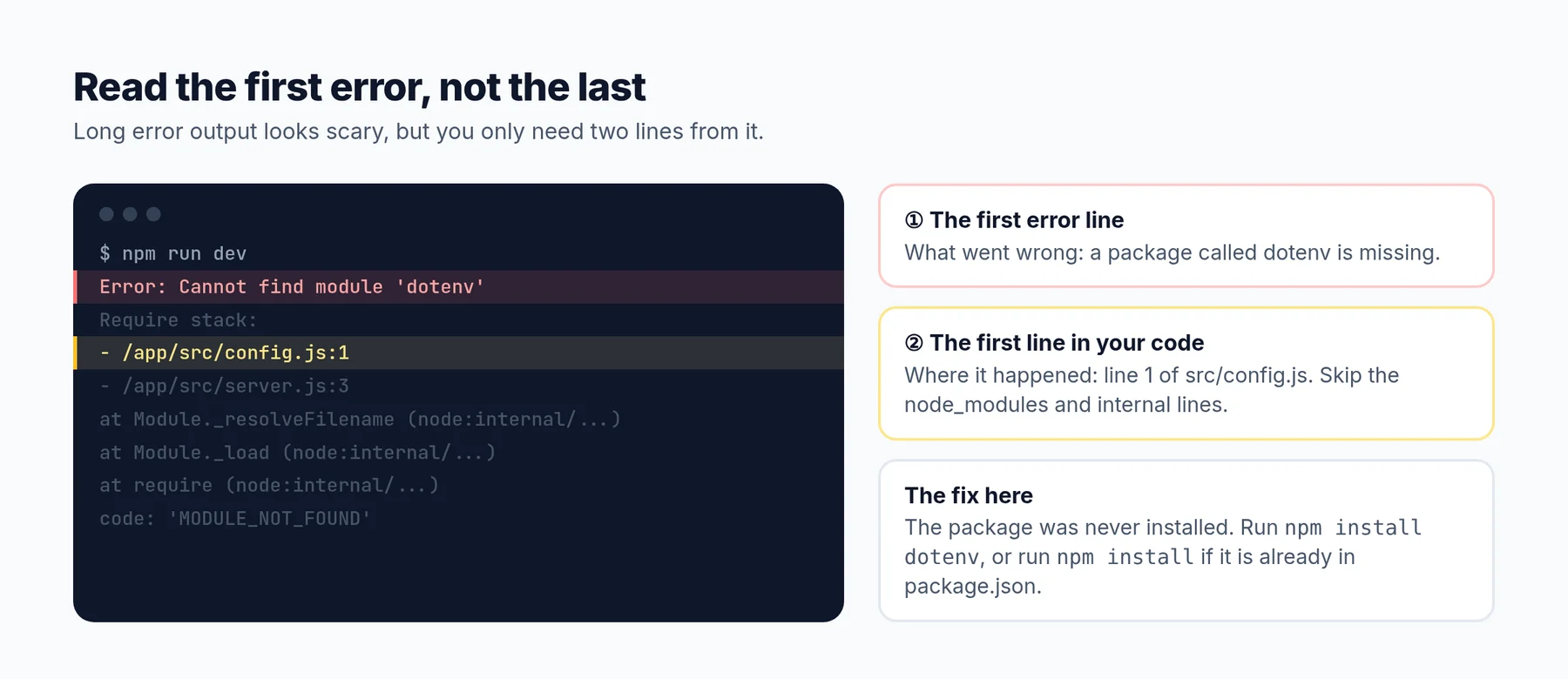 The first error line tells you what went wrong. The first line in your own code tells you where.
The errors you will meet most often during setup:
| Error | What it usually means | Fix |
|---|---|---|
Cannot find module / ModuleNotFoundError |
A package is not installed, or installed in a different environment | Run the install again; for Python, activate the virtual environment first |
EADDRINUSE / "port already in use" |
Another app is already using that port | Stop the other app, or change the port in .env |
ECONNREFUSED / "connection refused" |
The database is not running, or the host/port in .env is wrong |
Start the database and check the connection settings |
| "relation does not exist" / "no such table" | Migrations have not been run | Run the migration command for your stack |
| "No application encryption key has been specified" | Laravel's APP_KEY is empty |
Run php artisan key:generate |
undefined setting / KeyError |
A value is missing from .env |
Add it, then restart the app |
There is a longer list, with a step-by-step method for anything not covered here, in how to fix errors in a coding tutorial.
Step 7: Write down what you did
Once the project runs, spend three minutes writing the exact steps into a README.md: the language version, the install command, which values .env needs, how to start the database and the start command. You will not remember them in a month, and the next time you open this project it will take two minutes instead of an hour.
Skip the guesswork with YouExtractor
If you are starting from a YouTube video rather than a repo, the hardest part of setup is that you are guessing: which packages were installed off-camera, which settings went in .env, which commands the instructor ran before recording.
YouExtractor rebuilds the project from a public tutorial with captions, including the files that are usually missing. Here is a React tutorial extracted with its package.json, the Vite and Tailwind config files and every component:
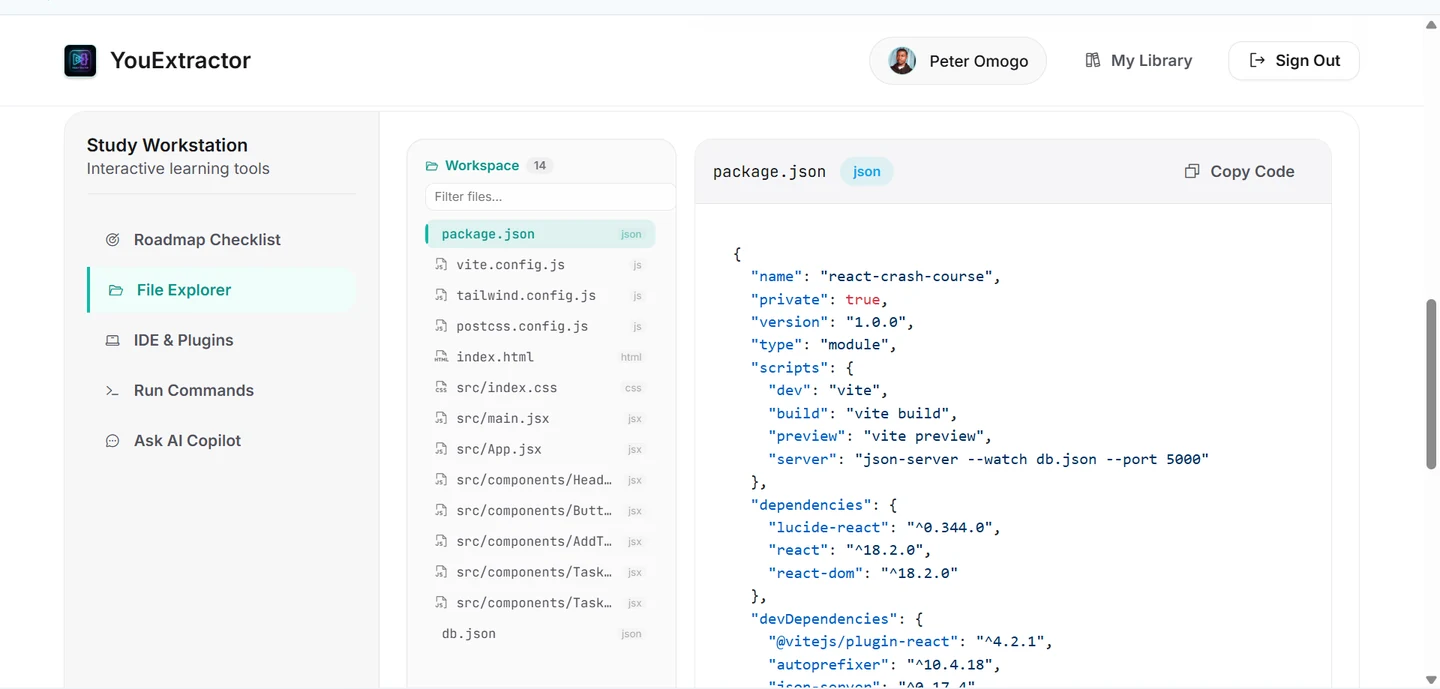 An extracted project includes the dependency file, so you know exactly what to install.
Each extraction includes dependency files like package.json or requirements.txt, a .env.example when the video uses environment variables, a Run Commands tab with the commands to install and start the project, and a Guided Learning Roadmap that starts with the setup steps, such as which Node version to install. If something still fails, the AI Copilot knows the exact tutorial, so you can paste the error and ask what is wrong. Your first extraction is free.
You still run the commands yourself, but you are no longer guessing which ones.
Frequently asked questions
Should I use npm install or npm ci?
Use npm ci when the project has a package-lock.json. It installs exactly the versions in the lock file and fails if the lock file and package.json disagree. Use npm install when there is no lock file, or when you are adding a new package.
Do I need Docker to follow a tutorial?
Only if the tutorial uses it. Docker is a convenient way to run a database without installing it, but SQLite or a local install work just as well for learning. If the project has a docker-compose.yml, docker compose up is usually the fastest way to start everything at once.
The tutorial is on macOS and I use Windows. Will it work?
Usually, with small changes. Commands like cp, export and source do not work in Windows Command Prompt. Use WSL or Git Bash to run the commands as shown, or look up the PowerShell equivalent.
Should I upgrade the packages to the latest versions?
Not until the project works. Get it running with the versions the tutorial used first, commit it, and then upgrade one package at a time, so you know exactly which upgrade broke something.