You found the perfect coding tutorial. The instructor builds exactly what you need, explains it clearly, and the app works at the end. Then you realise the code only exists as pixels in a video, and you are about to spend the next hour pausing, squinting, rewinding and retyping.
You usually do not have to. Most tutorial code can be recovered in a few minutes if you look in the right places, in the right order. This guide walks through five methods, from the free one-minute checks to extracting a complete runnable project, with the exact steps for each and the mistakes that cost people the most time.
Quick answer: check the video description and pinned comment for a repo link first. If there is none, search the creator's GitHub. Use the transcript for commands and package names. Copy short snippets from a paused frame. When you need the whole project, with every file, dependency and setup step, extract it with an AI tool like YouExtractor.
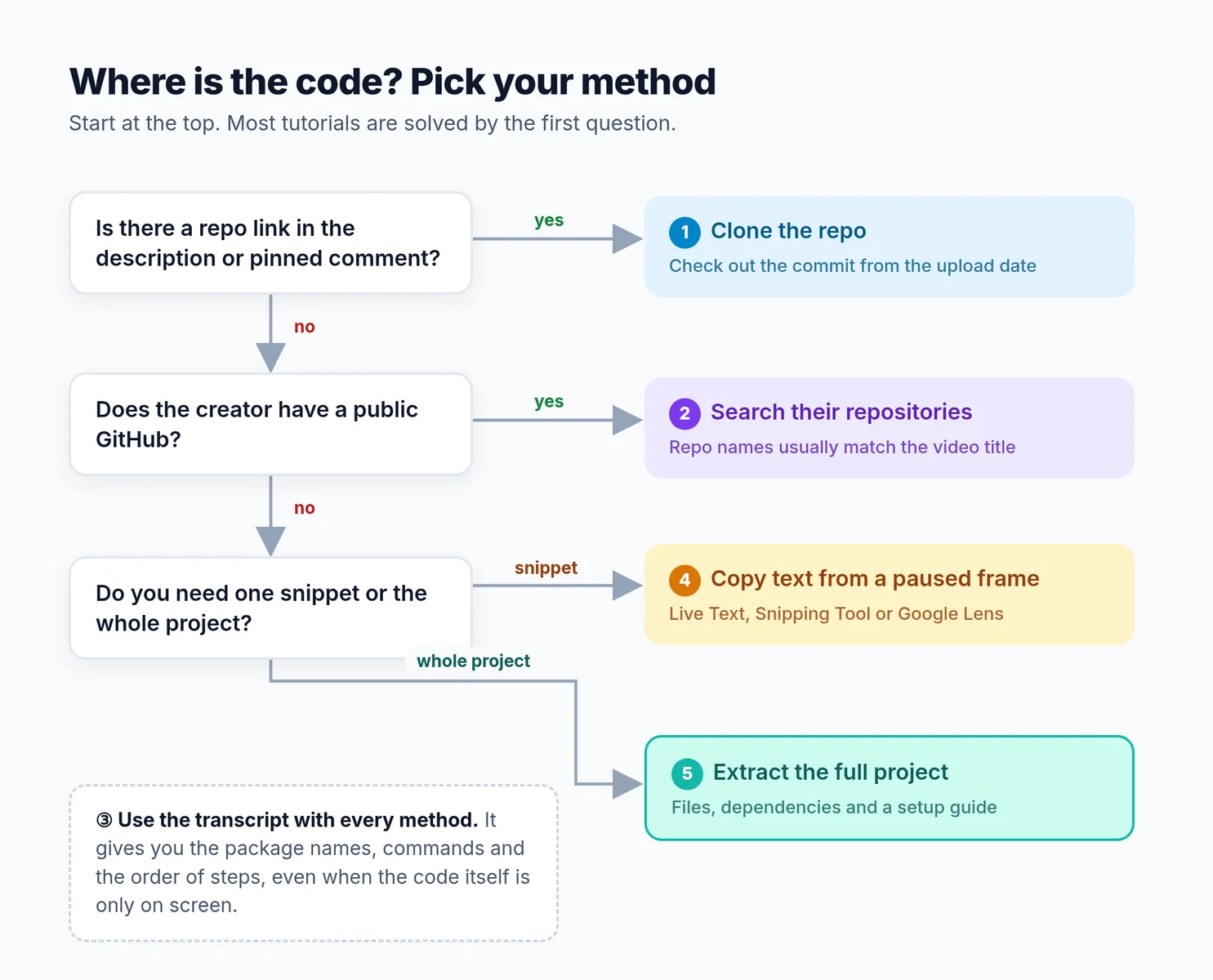 Start at the top. Most tutorials are solved by the first or second question.
First, decide what you actually need
"Getting the code" means different things depending on why you are watching:
- One snippet. You want a single function, a regex, a config block or a command. Speed matters more than completeness.
- The finished project. You want the full app as it looks at the end of the video, ready to run and modify.
- The project at a specific point. You are following along and want the code as it was at minute 23, before the instructor added the next feature.
Knowing which one you need saves time. A snippet is a two-minute job with a screenshot. A full project almost never is, because tutorials leave out the files that make a project run: dependency manifests, environment variables, config files and the folder structure. Those are exactly the parts that are hardest to copy from a screen.
Method 1: Check the description, pinned comment and linked pages
Most instructors who care about their audience publish the source code somewhere. The problem is that it is often hidden in places people do not look.
Where to look, in order:
- The full description. Click "...more" to expand it. Repo links are often below the sponsor section, the timestamps or the social links. Press
Ctrl+F(orCmd+F) and search the page forgithub,gitlab,sourceorcode. - The pinned comment. Creators often add the repo link after publishing, and the pinned comment is the easiest place to do it. Sort comments by "Top" to see it first.
- Online editors. Frontend tutorials frequently link to CodePen, CodeSandbox, StackBlitz or Replit instead of GitHub. These let you run the code in the browser and download it.
- The creator's website or newsletter. Some creators keep source code on their own site, sometimes behind a free email sign-up. The link is usually in the description or the channel's "About" section.
- The course page. If the video is part of a series or a free preview of a paid course, the code may live on the course platform rather than GitHub.
Get the version that matches the video
Finding the repo is only half the job. Tutorials age fast. The creator may have upgraded dependencies, renamed functions or restructured the whole project since recording. If you clone the latest version, your screen will stop matching the video within minutes.
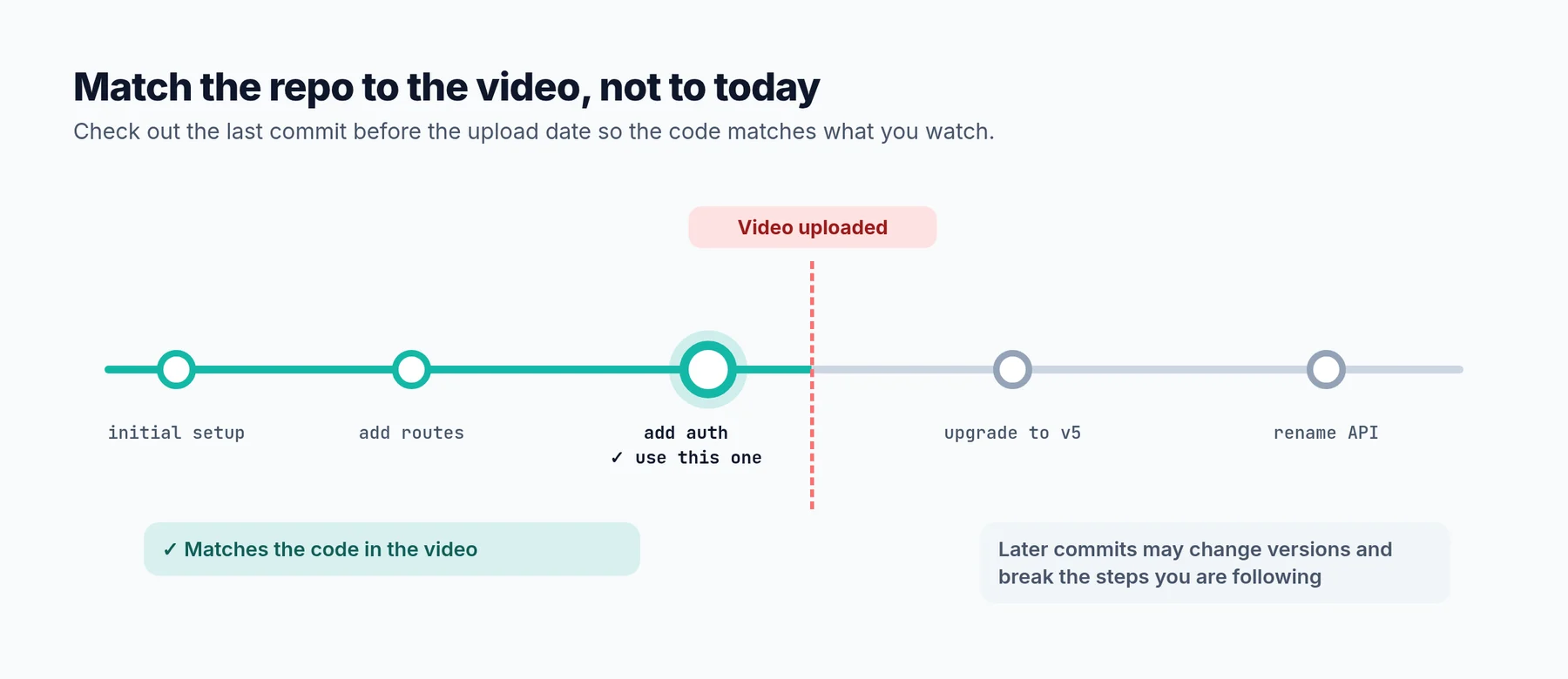 Pick the last commit before the video was published, not the newest one.
To get the version the video was recorded with, check out the last commit before the upload date (shown under the video title):
git clone https://github.com/creator/project.git
cd project
git log --before="2026-03-01" -1 --oneline   # last commit before the upload date
git checkout <commit-hash>
Also check the repo's branches and tags. Multi-part tutorials often have branches like part-2 or start/finish, and some creators tag a release for each video. Those are even better than guessing by date.
Method 2: Search the creator's GitHub directly
No link in the description does not mean no repo. Many creators publish everything on GitHub and simply forget to link it.
- Find the creator's GitHub profile. Search GitHub for the channel name or the creator's real name. Their profile is often linked from the channel's "About" section.
- Browse their repositories. Repo names usually match the video title: "nextjs-ecommerce", "django-todo-app", "react-hooks-course". Sort by "Last updated" and look around the video's upload date.
- Search for a distinctive string. Pause the video on a line with an unusual function name, variable or comment, then search it with GitHub code search. You need to be signed in to GitHub. If the code is public anywhere, this often finds it, including copies that other viewers uploaded.
- Check forks and community copies. Popular tutorials often have viewers who published their own follow-along versions. These are useful as a reference, but treat them with care. They may contain the viewer's own bugs.
Method 3: Use the transcript as your instruction manual
YouTube generates a transcript for most videos with captions. On desktop, open the description and click Show transcript. A panel opens with every sentence and its timestamp, and you can click any line to jump to that moment.
The transcript will not give you the code itself, because instructors do not read code aloud character by character. It is still one of the most useful tools you have:
- Package names and commands. "Now run npm install zod" or "pip install python-dotenv" appear word for word, and they are exactly what the screen often skips.
- The order of steps. Copy the transcript into your notes and you have a checklist of the whole tutorial.
- Searchable explanations. Instead of scrubbing a 2-hour video for "where did he set up the database?", search the transcript for "database" and jump straight there.
- Things said but never shown. "I've already created a
.envfile with my API key" is a sentence that tells you a file is missing from your project.
One caveat: automatic captions misspell technical words. Library names, CLI flags and acronyms often come out wrong ("next JS", "pie test" for pytest). When a word looks odd, check the screen at that timestamp.
Method 4: Copy code from a paused frame
When the code exists only on screen, you can still avoid typing every character. Modern operating systems can recognise text in images:
| Platform | Tool | How |
|---|---|---|
| macOS / iOS | Live Text | Take a screenshot, open it, and select the text directly |
| Windows 11 | Snipping Tool | Take a snip, then use Text actions to copy the text |
| Chrome (any OS) | Google Lens | Right-click the page, choose Search with Google Lens, select the code area and copy the text |
For the best results:
- Set the video to the highest quality (1080p or above) and go full screen before pausing.
- Pause on a stable frame where the instructor is not scrolling or typing.
- Copy small blocks at a time and paste them straight into your editor.
- Run a formatter or linter immediately (Prettier, Black,
php -l). It catches broken brackets and lost indentation in seconds.
Text recognition reads letters, not syntax, and code is full of characters that look alike. A Florida State University study on OCR for programming screencasts found that accuracy varies hugely between engines: Google's OCR scored about 95% on code from video frames, while Tesseract, the engine most research tools used, managed 57%.
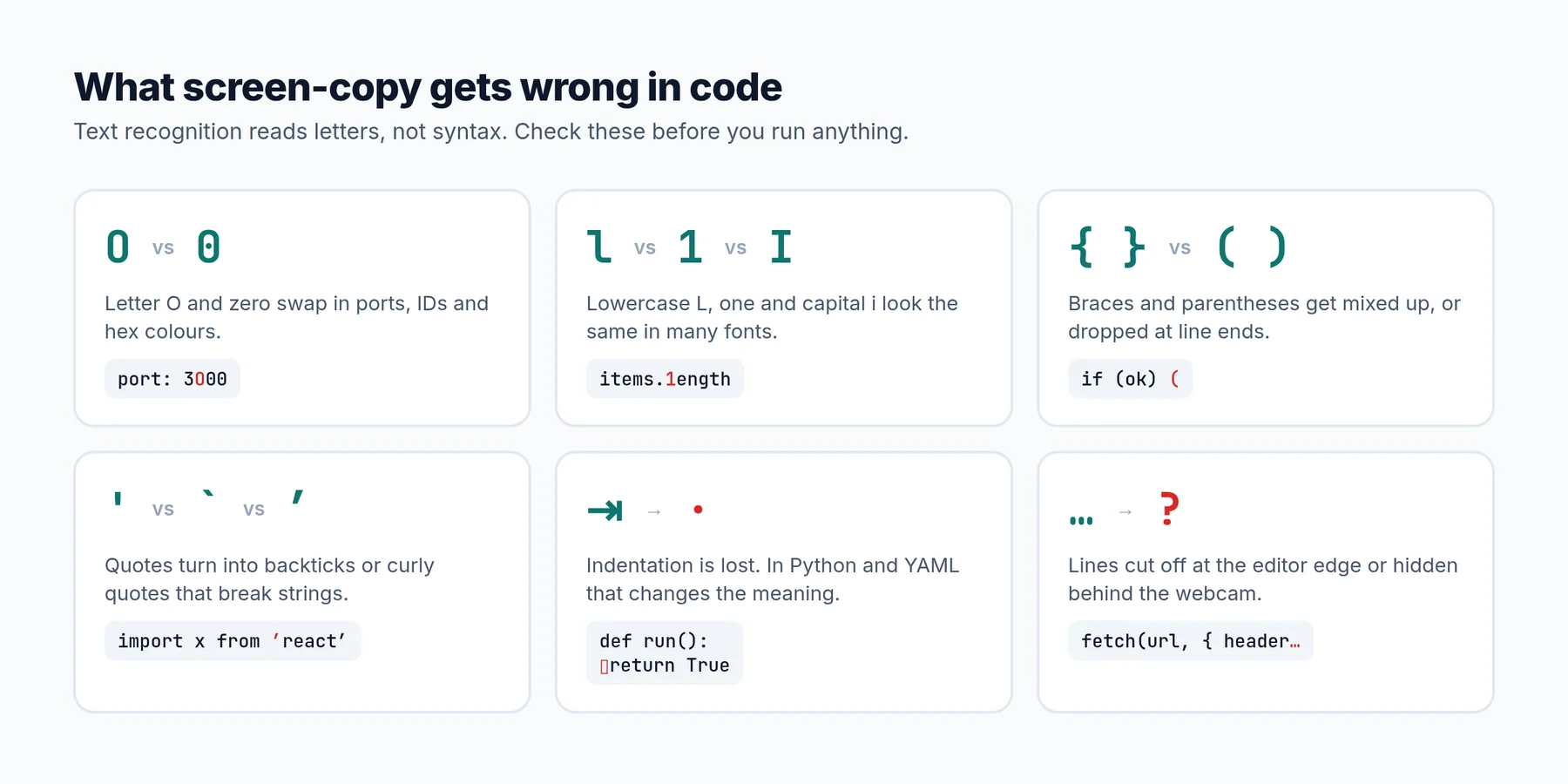 Check these before running anything you copied from a screenshot.
This method is great for snippets and breaks down for real projects. You only get the files the instructor happened to show on screen, and the ones that make a project run (dependency files, environment variables, config) are usually the ones shown for half a second, or never.
Method 5: Extract the whole project with YouExtractor
The first four methods get you snippets, or a repo if you are lucky. What you usually want is the project: every file in the right folder, the dependencies, the environment variables and the steps to run it.
That is what YouExtractor does. You paste a public YouTube tutorial URL, and it analyses the transcript and the code walkthrough to rebuild the project.
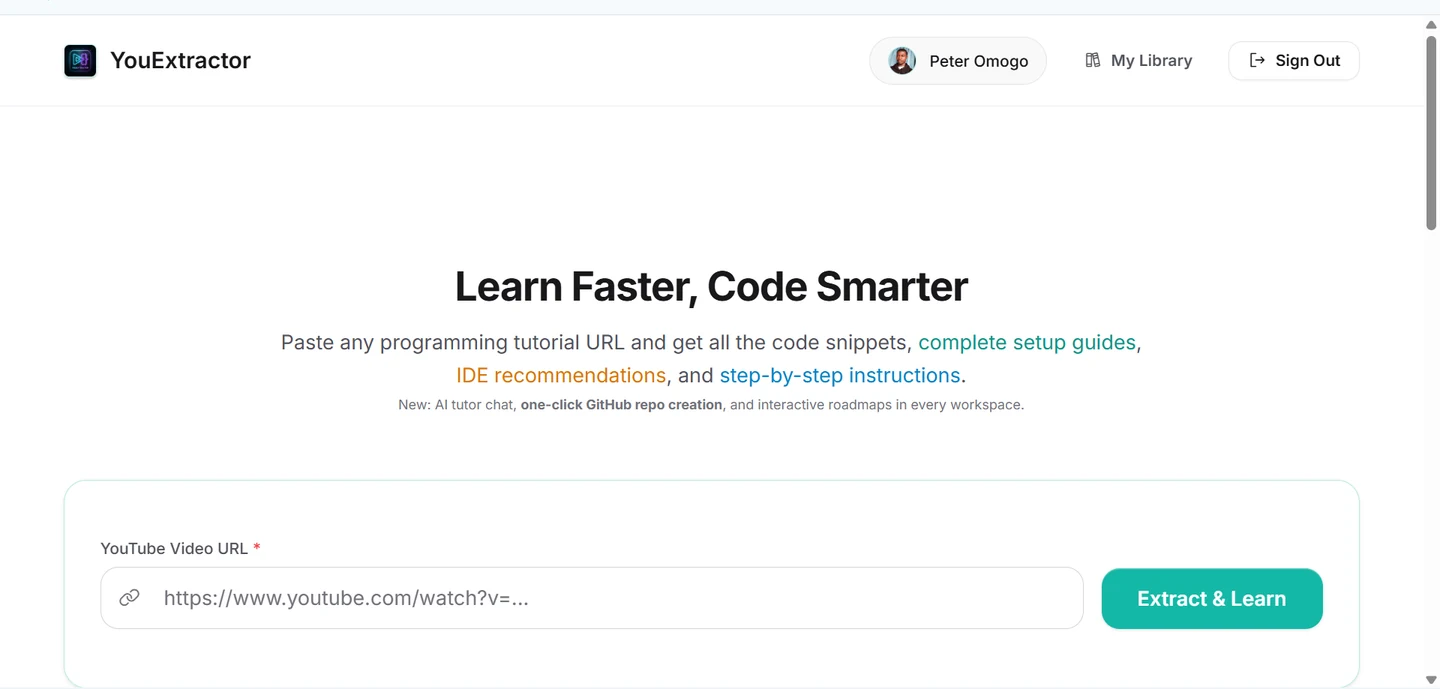 Paste the tutorial URL and click Extract & Learn.
When the extraction finishes, you get a workspace with the full project, not just snippets. Here is a React crash course extracted into 14 files, including the package.json with the exact dependencies the instructor used, the Vite and Tailwind config, and every component:
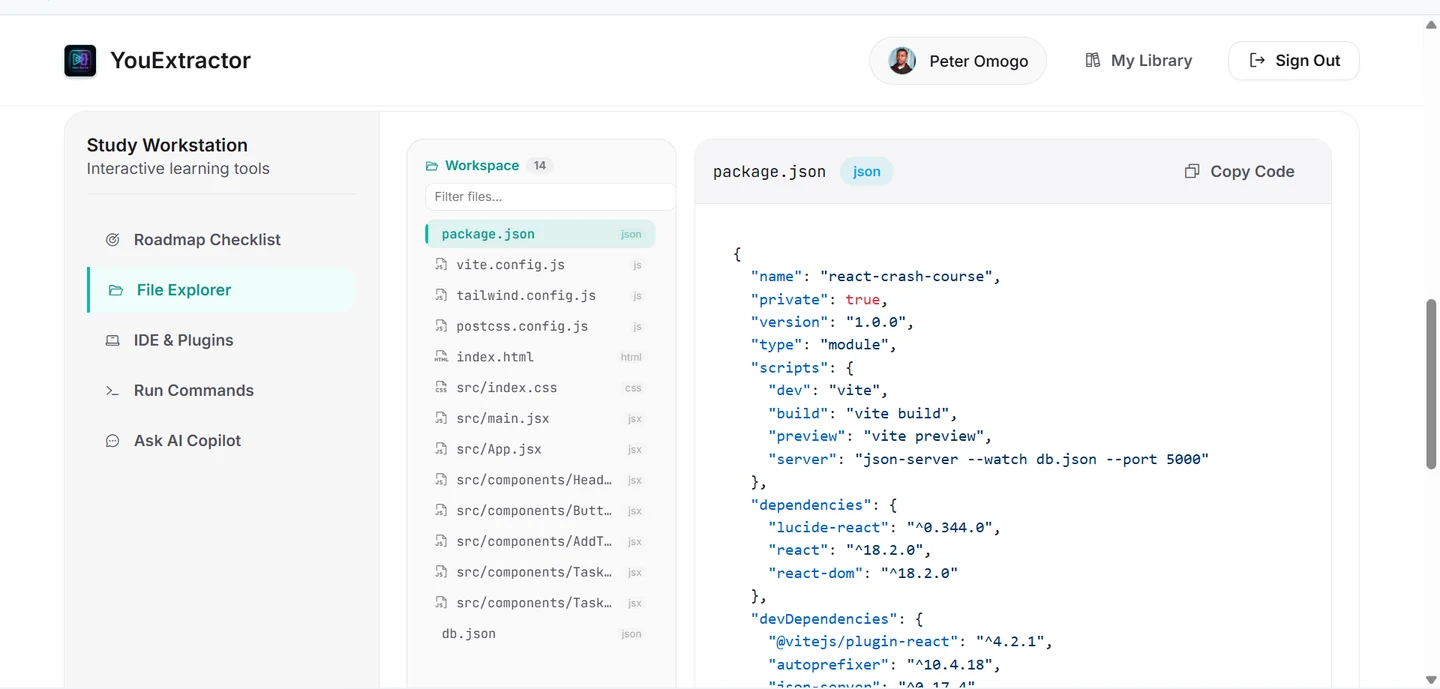 The File Explorer: every file from the tutorial, with a copy button for each.
Each extraction also comes with a Guided Learning Roadmap: a checklist of the tutorial's steps, from installing the right Node version to creating each file. Your progress is saved, so you can work through a long course over several days.
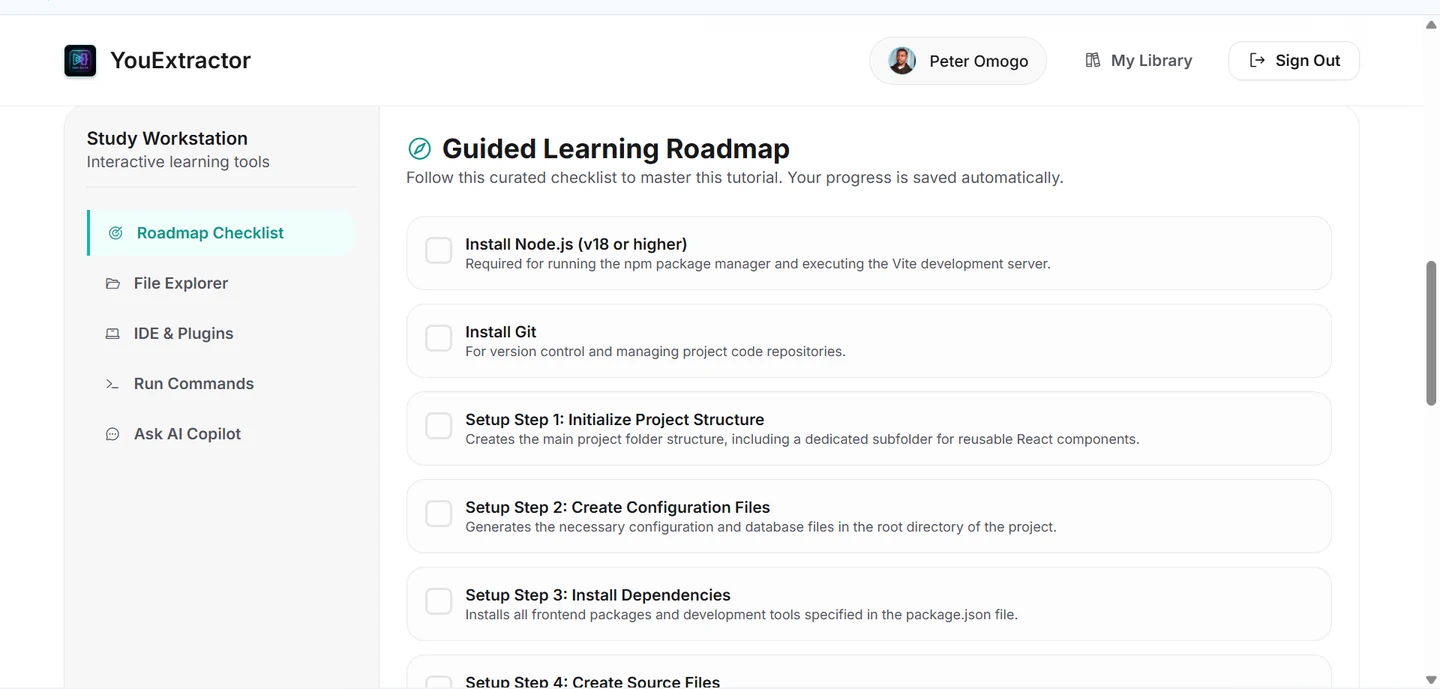 The roadmap turns the video into a checklist you can tick off.
What you get from each extraction:
- The complete file tree, not isolated snippets
- Dependency files such as
package.json,requirements.txtorcomposer.json - A
.env.examplewhen the video uses environment variables - Run commands and recommended editor plugins
- An AI tutor that knows the exact tutorial, for questions about the code or errors
- A ZIP download, or a one-click push to a new GitHub repository
Limits worth knowing: it works with public videos that have captions. Private and members-only videos are not supported. Like any reconstruction, the output is a starting point to run and check, not a guaranteed copy of the instructor's files. Every account gets one free extraction, so you can try it on the tutorial you are watching right now. If you want to go deeper, see how to verify extracted code before you trust it.
Which method should you use?
| Method | Time | What you get | Cost | Best for |
|---|---|---|---|---|
| 1. Description and pinned comment | 1 minute | The creator's exact repo | Free | Any tutorial that links its code |
| 2. Creator's GitHub | 5 minutes | The repo, if it exists | Free | Active creators who forgot the link |
| 3. Transcript | 2 minutes | Commands, package names, step order | Free | Every tutorial, alongside another method |
| 4. Paused-frame copy | Minutes per snippet | Code shown on screen only | Free | One function or config block |
| 5. YouExtractor | A few minutes | Full project, setup guide and roadmap | First extraction free | Running and learning from the whole project |
In practice, the fastest workflow combines them: spend one minute on methods 1 and 2, and if there is no repo, extract the project and keep the transcript open while you work through it.
After you have the code: a 5-minute sanity check
Whatever method you used, do this before you start changing things:
- Match the versions. Check the video's upload date and the versions shown on screen, then use the same Node, Python or PHP version. Most "it works in the video but not for me" errors are version mismatches.
- Create the
.envfile. Copy.env.exampleto.envand fill in your own values. Never use API keys shown in a video, even if they are visible. - Install and run. Install the dependencies and start the project once, before you edit anything, so you know your starting point works.
- Commit it. Run
git initand commit the working version. When something breaks later, you can always get back to this point.
If any of these steps fail, how to set up a project from a tutorial and how to fix errors in a coding tutorial cover the details.
Respect the creator
Whatever method you use, the code still belongs to the person who made the tutorial. Keep extracted projects for learning, credit the instructor and link the original video in your README, check the repo's licence before publishing anything publicly, and never republish their course material as your own product.
Frequently asked questions
Is it legal to copy code from a YouTube tutorial?
Copying code to learn from it and run it yourself is how tutorials are meant to be used. Publishing it is different. Check the licence of the creator's repo if there is one, credit the creator, and keep the project private if you are unsure.
What if the video has no captions?
Methods 1, 2 and 4 still work. Transcript-based methods, including YouExtractor, need captions or a transcript, so they will not work on videos without one.
Why doesn't the creator's repo match the video?
The repo has probably been updated since the video was recorded. Check out the last commit before the upload date, or look for a branch or tag named after the video.
Do I need the Chrome extension to use YouExtractor?
No. You can paste any YouTube URL into the web app at youextractor.me. The Chrome extension adds an extract button directly on the YouTube watch page, which is handy if you extract often.
Does it work on long courses?
Yes. Long, multi-hour courses are a good fit, because the roadmap breaks them into steps you can complete over several sessions.